If you’re looking up the GTA San Andreas system requirements before installing it on your PC, you’re asking the right question first. Grand Theft Auto: San Andreas is more than 20 years old now, but it still has one of the largest and most loyal player bases in PC gaming history. New players keep discovering it, old fans keep reinstalling it, and almost everyone runs into the same question at some point: will this game actually run on my Windows 10 or Windows 11 PC, and what’s the right way to install it without running into crashes, black screens, or missing DLL errors?
This guide answers both questions properly. We’ll walk through the real system requirements (both the original 2004 release and the newer Definitive Edition, since people often confuse the two), then go step by step through installing GTA San Andreas on a modern Windows machine, including the fixes that actually solve common installation headaches.
Visit Now: https://gtasanguide.com/
GTA San Andreas: Two Different Versions, Two Different Requirements
Before checking specs, it’s worth knowing which version you’re actually installing, because the hardware needs are completely different.
- Original GTA San Andreas (2004): the classic version most people grew up with, still sold on platforms like Steam and the Rockstar Games Launcher in its original form.
- GTA San Andreas: The Definitive Edition (2021), the remastered version bundled inside GTA: The Trilogy, with updated visuals, lighting, and character models.
If your goal is the nostalgic, lightweight classic version, you need very little horsepower. If you’re after the remaster, you’ll need a noticeably stronger PC. Let’s break both down.
Original GTA San Andreas (2004) – System Requirements
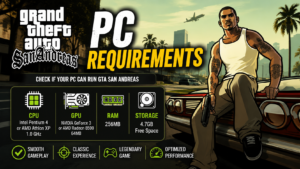
This is the version most “low-end PC” guides are talking about, and the good news is that almost any laptop or desktop built in the last decade can run it without trouble. The GTA San Andreas system requirements for this version are light by today’s standards.
| Component | Minimum Requirement | Recommended Requirement |
| OS | Windows 7/8/10/11 (via compatibility mode) | Windows 10/11 |
| Processor | 1 GHz Pentium III or AMD Athlon | Intel Pentium 4 or AMD Athlon XP |
| RAM | 256 MB | 384 MB or higher |
| Graphics Card | 64 MB VRAM (GeForce 3 or equivalent) | 128 MB VRAM (GeForce 6 series or similar) |
| Storage | 4–5 GB free space | 5 GB free space (SSD preferred) |
| DirectX | Version 9.0c | Version 9.0c |
In practical terms, if your PC can comfortably browse the internet and run Microsoft Office, it can run the original GTA San Andreas. The bigger challenge isn’t the hardware, it’s compatibility with modern Windows versions, which we’ll cover in the installation section below.
GTA San Andreas: The Definitive Edition – System Requirements
If you bought GTA: The Trilogy on Steam, Rockstar Launcher, or Epic Games Store, you’re dealing with a much more demanding game built on Unreal Engine. The GTA San Andreas system requirements jump noticeably higher for this version.
| Component | Minimum Requirement | Recommended Requirement |
| OS | Windows 10 64-bit | Windows 10/11 64-bit |
| Processor | Intel Core i5-6600K or AMD FX-6300 | AMD Ryzen 5 2600 or equivalent |
| RAM | 8 GB | 16 GB |
| Graphics Card | GeForce GTX 760 (2GB) or Radeon R9 280 (3GB) | AMD Radeon RX 570 or better |
| Storage | 19–45 GB free space | Same, SSD strongly recommended |
| DirectX | Version 12 | Version 12 |
If your PC was bought in the last five years and has a dedicated graphics card, you’ll likely be fine. Integrated graphics chips (like older Intel UHD or basic laptop GPUs) may struggle with the Definitive Edition, even though they handle the original version without issue.
Original vs Definitive Edition: Quick Comparison
| Factor | Original (2004) | Definitive Edition (2021) |
| Hardware needed | Very low | Moderate to high |
| Visuals | Classic, low-poly | Remastered, modern lighting |
| Storage required | ~5 GB | Up to 45 GB |
| Best for | Older PCs, nostalgia | Modern PCs, better graphics |
| Available on | Steam, Rockstar Launcher | Steam, Epic, Rockstar Launcher |
How to Install GTA San Andreas on Windows 10/11 (Step-by-Step)
Now for the part most people actually struggle with. Installing an older game on a newer Windows version can trigger compatibility errors, missing files, or the dreaded black screen on launch. Below is the process that actually works, step by step, without the guesswork most tutorials skip over.
Step 1: Buy or download it through an official source
This sounds obvious, but it’s where most installation problems start. Get your copy from Steam, the Rockstar Games Launcher, or the Epic Games Store if you’re going for the Trilogy version. Cracked or “free” installers from random sites are where most of the missing-file errors and weird malware warnings come from later on.
Step 2: Update your graphics drivers first
Old GPU drivers cause more launch problems than people expect, way more than the game’s actual age does. Whether you’re on NVIDIA, AMD, or just running Intel’s integrated graphics, grab the latest driver from the manufacturer’s site before you even open the installer. Takes five minutes and saves you a lot of head-scratching later.
Step 3: Install the Game
- Open Steam, Epic Games, or Rockstar Games Launcher
- Search for “Grand Theft Auto: San Andreas” (or the Trilogy, for the Definitive Edition)
- Click Install and choose a drive with enough free space, preferably your SSD
- Let the installation finish completely before launching
Step 4: Run the Game in Compatibility Mode (Original Version Only)
This step matters specifically for the original 2004 release, since it was designed for much older versions of Windows.
- Right-click the GTA San Andreas executable (gta_sa.exe) inside the installation folder
- Select Properties
- Go to the Compatibility tab
- Check “Run this program in compatibility mode for” and select Windows 7 or Windows XP (Service Pack 3)
- Also check “Run as administrator.”
- Click Apply, then OK
This single fix resolves a large percentage of launch crashes and “the program has stopped working” errors on modern systems.
Step 5: Install Missing Runtime Components
Older games often need legacy software components that newer Windows installs don’t include by default. Make sure you have:
- Microsoft DirectX 9.0c (even on Windows 11, since the game’s renderer expects it)
- Visual C++ Redistributables (both 2010 and the latest version)
- .NET Framework 3.5, which some older patches and mods still require
Step 6: Adjust In-Game Settings for Stability
Once launched, head into the in-game display settings and
- Set resolution to match your monitor’s native resolution
- Turn off Vsync if you notice stuttering, or turn it on if you see screen tearing
- Lower Draw Distance slightly if you’re on integrated graphics
Step 7: Apply the Widescreen/HD Fix (Optional but Recommended)
The original GTA San Andreas wasn’t built for modern widescreen monitors, so the picture can look stretched. A well-known fix is the SilentPatch mod, which corrects widescreen rendering, fixes long-standing bugs from the original release, and improves general stability on Windows 10/11. No cost, barely any setup, and it doesn’t touch the actual gameplay, just fixes how the screen renders.
Common Installation Problems and Quick Fixes
| Problem | Likely Cause | Fix |
| Black screen when you launch the game | Usually a driver problem, sometimes compatibility mode | Go back and double-check Steps 2 and 4 |
| Crashes right after the Rockstar logo | Missing DirectX or Visual C++ files, more common than you’d think | Reinstall the components from Step 5 |
| The controller isn’t picked up at all | Drivers are outdated, or Windows just isn’t reading them. | Update the drivers first, then try Xbox360ce if it’s still not working |
| The game runs, but FPS is rough | It could be background apps or it could be drivers | Close anything running in the background, then check your GPU drivers |
| “This app can’t run on your PC” pops up | Almost always a bad or pirated installer | Reinstall from Steam, Epic, or Rockstar’s launcher directly |
Conclusion
GTA San Andreas has aged remarkably well, partly because its hardware demands are so low by today’s standards and partly because Rockstar’s Definitive Edition gave it a second life for players who want sharper visuals. Whichever version you’re installing, the process on Windows 10/11 is straightforward once you know which compatibility settings and runtime files to check first.
If you run into a specific error message not covered here, drop it in the comments below, chances are someone else hit the exact same issue, and we’ll help you sort it out.
FAQ’s
1. Can GTA San Andreas run on Windows 11?
Yes. Both the original version and the Definitive Edition run on Windows 11, though the original may need compatibility mode adjustments for a smooth launch.
2. How much storage space does GTA San Andreas need?
Storage is one of the most asked-about parts of the GTA San Andreas system requirements. The original version needs roughly 4–5 GB, while the Definitive Edition (as part of the Trilogy) can require anywhere from 19 GB to 45 GB depending on installation choices.
3. Do I need a graphics card to play GTA San Andreas?
For the original version, no, integrated graphics handle it fine. For the Definitive Edition, a dedicated GPU is strongly recommended for stable performance.
4. Why does GTA San Andreas crash immediately after launching on Windows 10/11?
This is typically caused by missing DirectX or Visual C++ components, outdated GPU drivers, or not running the game in compatibility mode.
5. Is GTA San Andreas free to download?
No, it’s a paid title on official platforms like Steam, Rockstar Games Launcher, and Epic Games Store. Be cautious of “free download” sites, as these often distribute pirated or unsafe files.
6. Can a laptop with integrated graphics run GTA San Andreas?
Yes, for the original release. Most laptops from the last 10–15 years, even without a dedicated GPU, can run it smoothly.
7. What is the difference between GTA San Andreas and the Definitive Edition in terms of requirements?
The original needs minimal hardware (256 MB RAM, basic GPU), while the definitive edition needs at least 8 GB RAM and a dedicated graphics card due to its updated graphics engine.
8. Does GTA San Andreas support widescreen resolutions natively?
Not fully on the original release. Widescreen support requires a fix like SilentPatch, which is free and widely used by the community.
9. How do I fix controller issues in GTA San Andreas on PC?
Update your controller drivers, check in-game control bindings, and if needed, use a tool like Xbox360ce for better compatibility with the original release.
10. Is DirectX 9 still needed for GTA San Andreas on Windows 11?
Yes, for the original version. Even though Windows 11 supports newer DirectX versions, the game’s renderer specifically requires DirectX 9.0c components to function correctly.
11. Can I install GTA San Andreas mods safely?
Yes, as long as you download mods from reputable community sites and back up your original game files first, since some mods can conflict with game updates.
12. Why is my GTA San Andreas screen stretched or distorted?
This happens because the original game wasn’t designed for modern widescreen monitors. Installing a widescreen fix mod resolves this issue.
13. Does GTA San Andreas need an internet connection to play?
No, it’s fully playable offline once installed, except for digital rights verification through platforms like Steam during the first launch.
14. What CPU do I need for the Definitive Edition of GTA San Andreas?
At minimum, an Intel Core i5-6600K or AMD FX-6300. For smoother performance, an AMD Ryzen 5 2600 or equivalent is recommended.
15. Can older PCs from 2010–2015 still run GTA San Andreas today?
Yes, for the original version. Most PCs from that era exceed the game’s minimum requirements comfortably, though driver updates may still be needed for stability on Windows 10/11.